Log in with a touch
One touch of a fingerprint now opens every door on my self-hosted platform: the git server, every git push, every signed commit, and SSH into the server that guards the network. Six-digit codes are still there, but only as the fallback.
I run a small development platform alone: a git server, a CI runner, my own code-signing services, and a hub server that everything connects through. Each of those used to want a password, a six-digit code, or both. Typed dozens of times a day, codes stop feeling like security and start feeling like friction. Worse, a code can be phished: a fake login page can ask for it and relay it within the same 30 seconds.
A passkey or a hardware-backed key fixes both problems. The private key never leaves the device, the browser or SSH client checks which site is asking, and the proof of presence is a touch. Here is how I set it up, what broke, and how I check that it actually holds.
Web logins: passkey first, code as the fallback
Every account on my git server (Forgejo) logs in with a passkey; the authenticator code exists only as the fallback. Forgejo requires TOTP to be enrolled first, so the order is:
- Enable TOTP and store the scratch codes in the password manager.
- Add a passkey: Touch ID on a Mac, or an iPhone with Face ID.
- Log in once with the passkey and once with the code, so both paths are known to work.
A Mac without Touch ID still works: register the passkey from the iPhone, then choose "Use a phone or tablet" at login and scan the QR code. Bluetooth proves the phone is next to the Mac, so this stays phishing-resistant.
Prove it, don't remember it. I once opened the git server to the internet believing both accounts had two-factor. Only the admin account did; my daily account had a password only. A test login caught it the same day, and it was fixed within the hour. The check I now run for every account:
- Log out, log in: it must ask for the passkey.
- Try the API with only a password:
curl -s -u USER https://git.example.com/api/v1/usermust refuse basic authentication because a security key is enrolled.
The second check is the important one. Two-factor on the web page means nothing if the API still accepts a password alone.
Git over HTTPS: no stored credential at all
My git server has no SSH at all; git runs over HTTPS with a token that lives two hours, in memory only. git-credential-oauth does the login: the first push opens the browser, I touch the passkey, and git receives a short-lived OAuth token. Forgejo ships a built-in OAuth app for it, so there is nothing to register.
H=https://git.example.com
git config --global credential.$H.helper ""
git config --global --add credential.$H.helper "cache --timeout 7200"
git config --global --add credential.$H.helper oauth
git config --global credential.$H.oauthClientId <built-in app client ID>
The empty first line matters on macOS. Without it, Apple's git also stores the token in the Keychain, and a two-hour token quietly becomes a permanent one. Check that nothing was saved:
security find-internet-password -s git.example.com # must say: could not be foundThe login you didn't mean. The browser approves silently for whichever account is already logged in. For a while my pushes ran as the admin account, because that tab was open. The fix: the git server always opens in its own browser container logged in as my daily account, and the admin account's OAuth grant is revoked.
The same browser login signs my commits. gitsign sends me through it, and my own Fulcio issues a 10-minute certificate for my email. So the same passkey covers both pushing and signing.
SSH: a key in the Secure Enclave, unlocked by a touch
The hub server accepts two login paths, and each needs two factors: my normal SSH key plus either a TOTP code or a second key that lives in the Mac's Secure Enclave.
Path | Factor 1 | Factor 2 | When I use it |
|---|---|---|---|
Daily | ed25519 key on the Mac | ECDSA-SK key in the Secure Enclave, unlocked with Touch ID | Every login |
Fallback | ed25519 key on the Mac | TOTP code (scratch codes in the password manager) | Touch ID cancelled, another Mac, or the Mac is lost |
On the server, one line allows exactly those two combinations (SSH is only reachable over WireGuard, and the cloud provider's console stays as the break-glass login):
# /etc/ssh/sshd_config.d/30-mfa.conf
AuthenticationMethods publickey,keyboard-interactive publickey,publickey
On the Mac (macOS 26 or later, Apple's own ssh), the key is created inside the Secure Enclave, and only a handle is written to disk:
sc_auth create-ctk-identity -k p-256-ne -t bio -l 'Platform SSH'
cd ~/.ssh && SSH_ASKPASS_REQUIRE=force SSH_ASKPASS=true \
  ssh-keygen -w /usr/lib/ssh-keychain.dylib -K
In ~/.ssh/config, the host lists both keys and points SSH at Apple's provider with SecurityKeyProvider /usr/lib/ssh-keychain.dylib. Now ssh hub asks for a fingerprint and no code.
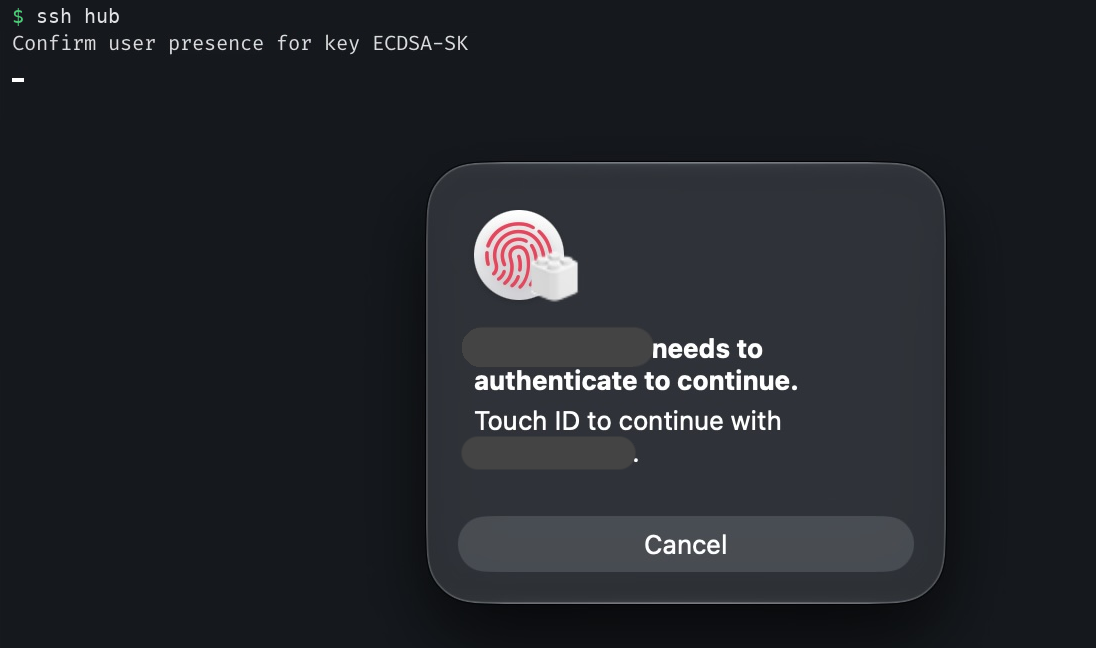
Three things I learned the hard way:
- Don't add
verify-required. macOS checks the fingerprint inside the Secure Enclave, but its signature carries only the "user present" flag, not "user verified". sshd then rejects the key and silently falls back to the code. Without the option, the server still demands both keys and a presence signal; the fingerprint itself is enforced by the Mac.

- "Two keys" means any two trusted keys. The
publickey,publickeypath is only as strong as the list inauthorized_keys. Mine still held three old, never-used software keys from past machines. With those, the hardware key wasn't required at all. I removed every key whose owner and location I couldn't name; now that path really needs the Secure Enclave. - Prove the fallback still asks for the code. Make the touch fail on purpose:
ssh -v -o SecurityKeyProvider=/nonexistent hubmust showsigning failedfor the Secure Enclave key and then prompt for the TOTP code. Don't test with-o IdentitiesOnly=yes -i ~/.ssh/id_ed25519: keys listed in~/.ssh/configare still offered, so the touch succeeds and the code is never asked for. The server log should showECDSA-SKon normal logins.
Fewer touches: reuse one login, never copy a key
One touch should open a session for several minutes, not for one command. Four habits make that work.
1. Reuse the connection (ControlMaster). The first ssh hub asks for a touch; every ssh, scp or rsync to the same host in the next 10 minutes rides the open connection with no prompt.
Host hub
    ControlMaster auto
    ControlPath ~/.ssh/cm-%C
    ControlPersist 10m
This also fixes a trap: piping one fresh ssh into another (ssh a cat file | ssh b 'cat > file') makes both ask for a touch or code at the same moment, on the same terminal. Log in once first, then pipe.
2. Run commands, not sessions. ssh hub 'systemctl is-active nginx' returns the answer and closes. Longer scripts go through ssh hub 'bash -s' <<'EOF' … EOF, so nothing is pasted into a remote shell by hand.
3. ssh -t for sudo. Without a terminal, sudo cannot ask for the password, and the command just hangs. ssh -t hub 'sudo …' gives it one.
4. Jump through the hub; never put a key on it. The home machines are reachable only through the hub, and the hub holds no private key that opens them. ProxyJump carries my Mac's key end to end; the hub only relays the encrypted connection and asks for its own second factor:
Host home-server
    HostName 10.0.0.2
    ProxyJump hub
So the touch on ssh home-server happens at the hub. The home machine itself accepts my one ed25519 key, with passwords and codes switched off. That is enough only because nothing else can reach it: a small nftables table drops every new connection from the home LAN except SSH from one known address, and everything else arrives through the hub.
The rule behind it: an internet-facing server is the most likely to be broken into, so it must give an intruder nothing further. When I audited this, one production server still held an old private key trusted by two other machines. It had been used only once, during setup, but it would have turned one break-in into three. It is gone, and every authorized_keys file now lists only keys whose owner and location I can name.
Lessons
The touch is the easy part; the checks are what make it security.
- Test every account, every path. Two-factor that exists on one account but not another is the most common gap, and it is invisible until you log in as each one.
- Check the API, not only the login page. A password that still works against the API undoes the passkey.
- Look for silent fallbacks. Both of my surprises fell back quietly: Touch ID to the code, and the Keychain turning a 2-hour token into a permanent one.
- Your weakest trusted key sets the strength. Prune
authorized_keysand OAuth grants until every entry has a known owner and device. - Keep a break-glass path that doesn't depend on any of this. A provider console and printed scratch codes, tested once.
Next: the root of all my signing keys never touches a network. In the next post, I walk through the offline root CA ceremony: a VM with no network card, two encrypted USB drives, and how I read the key back before trusting it.


Member discussion